Appearance
ZynoDisplay
WebWorkstationPair TVs, tablets, and players, then assign media, playlists, web pages, or forms and schedule what plays when. Manage everything from ZynoDisplay; each screen runs the player app.
Permission required
You need ZynoDisplay access to open the Display workspace. Registering and configuring devices require additional permissions. See Permissions & Troubleshooting.
Getting there
Open ZynoDisplay from the Home Launcher or the sidebar. The workspace has four areas:
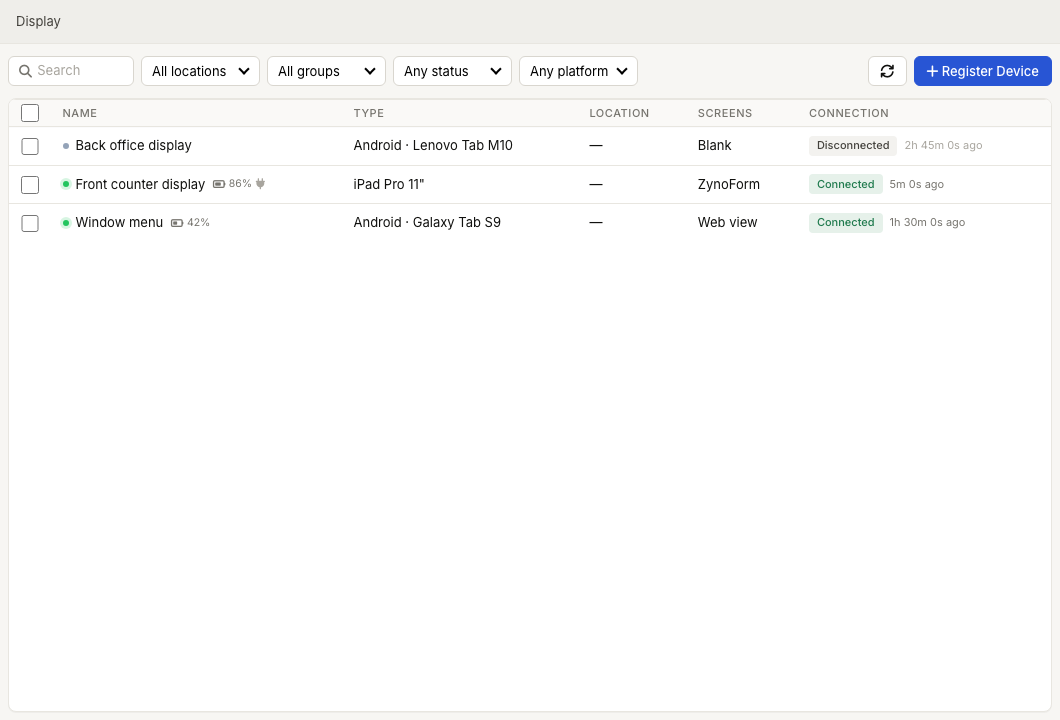
- Devices — every paired screen, its status, and its content.
- Display Groups — collections of screens that share content and schedules.
- Playlists — reusable, ordered sequences of media.
- Media Library — your uploaded images, videos, and clips.
How it works
A device is a piece of hardware. Each device has one or more screens (outputs) — most devices have a single screen, but some can drive several. You assign content to each screen, either directly or by adding the screen to a group. Content can be a single image or video, a playlist, a web page, or a ZynoForm. You can also add schedules so different content plays at different times of day.
New to the concepts? Start with How ZynoDisplay Works.
What you can do
- Register a device — pair a screen using its on‑screen code.
- Configure a device — name it, set its location, and assign content.
- Build a media library and playlists.
- Assign content to screens and groups, with scheduling for dayparting.
- Push live overrides — show a message or promo right now.
- Organize screens into groups and run bulk actions across many devices at once.
Related
- Supported Devices & Platforms
- Content Types
- ZynoForms — forms you can display on a screen
Common issues
| Problem | What To Check |
|---|---|
| ZynoDisplay is missing from the launcher | Ask an administrator to confirm your ZynoDisplay access. |
| A screen shows a code instead of content | The device is paired but not yet claimed, or not yet configured. See Registering a Device. |
| A screen is blank | No content is assigned, or a schedule has it blank for the current time. See Assigning Content. |
| A device shows as Disconnected | The screen is offline or has lost network. See Status & Monitoring. |