Appearance
Creating Contacts
WebWorkstationMobileCreate a contact when you need a reusable record for sales history, memberships, saved payment methods, form submissions, files, notes, or check-ins.
Permission required
You need ZynoCRM create access to create contacts.
Getting there
Open Customers & Contacts from the Home Launcher or sidebar, then select Create contact.
Create a contact
- Open Customers & Contacts.
- Select Create contact.
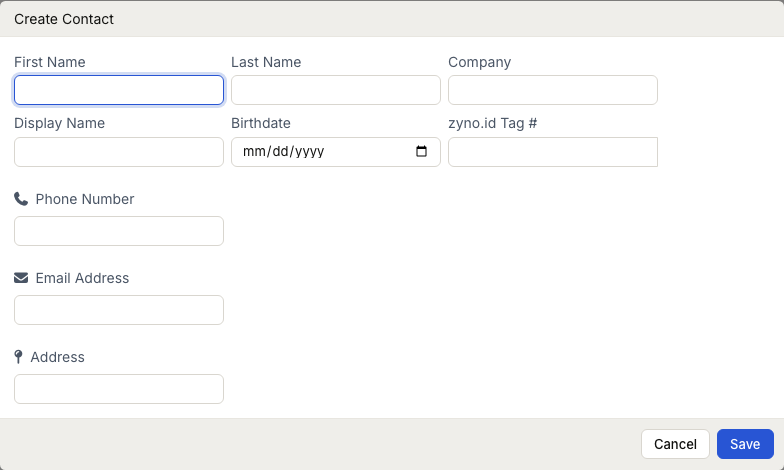
- Enter the contact's name, company, email, phone, or another identifying detail.
- Add phone numbers, email addresses, and addresses as needed.
- Optionally choose CRM Tags, Contact Types, an alternate name, and a marketing preference.
- Select Save.
ZynoSuite requires at least one of these before saving: name, company, email, or phone.
Person and company layouts
Your administrator chooses whether CRM is person-first or company-first.
| Layout | First fields shown |
|---|---|
| Person | First Name, Last Name, Company, Display Name, Birthdate, zyno.id Keytag # |
| Company | Company, Display Name, zyno.id Keytag #, then Primary Contact fields |
The Display Name field is optional. If it is blank, ZynoSuite builds the display name from the available name and company fields.
Add contact details
For phone numbers, email addresses, and addresses you can set:
- Type, such as home, work, cell, or fax.
- A custom type when the standard types do not fit.
- A note for context.
- A primary value when more than one exists.
Address fields can parse a pasted multi-line or comma-separated address into street, city, state, postal code, and country.
Add a zyno.id Keytag
The zyno.id Keytag # field links a unique physical keychain or printed barcode to the contact so the member can scan their own tag and staff can pull up the profile for check-in. On ZynoWorkstation, use the barcode button in the field to scan a tag instead of typing it. This is not a CRM contact tag—see zyno.id Keytags.
Contact types and marketing
Contact types classify a record with one or more labels configured by your administrator, such as Lead, Customer, or Vendor. Tags group contacts for your organization's own workflows. Both appear on the contact profile after you save.
The Marketing choice records an unrecorded preference, opted-in preference, or opted-out preference. Set it only when you have the relevant information from the person or your approved process.
Common issues
| Problem | What to check |
|---|---|
| Create contact is missing | Confirm your role has ZynoCRM create access |
| Save is disabled or fails | Provide at least a name, company, email, or phone |
| Expected fields are missing | Person vs company layout is set in CRM Settings |
| Tags or types are empty | Ask an administrator to configure CRM Tags and Contact Types |