Appearance
Navigating the App
WebWorkstationMobileZynoSuite is organized around two main places: the Home Launcher you land on after sign-in, and the sidebar (Quick Action Bar) that keeps apps, status, help, and account controls available while you work.
Home Launcher
After you sign in, the Home Launcher shows the apps your account can open—such as Customers & Contacts (ZynoCRM), ZynoSales, ZynoTalk, ZynoInventory, ZynoForms, ZynoDisplay, ZynoHosting, ZynoRMM, and Admin when enabled.
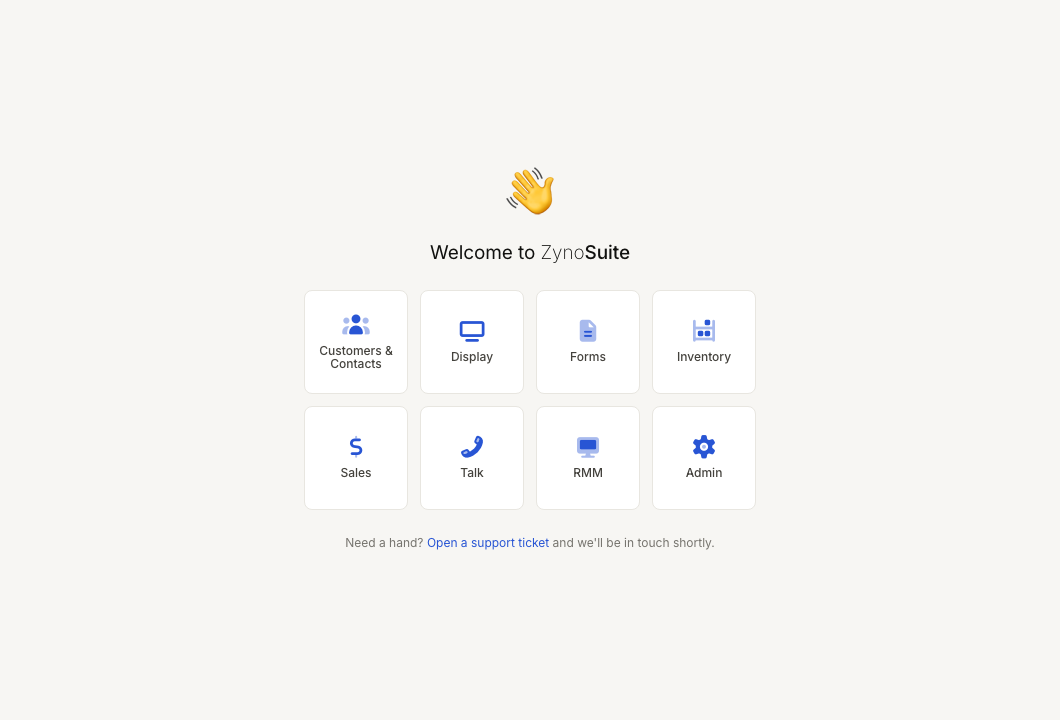
Select an app tile to open it. Only apps allowed by your role and organization appear. See Home Launcher for missing-app reasons and ZynoSales shortcuts.
Return to the launcher
Select the ZynoSuite brand name at the top of the sidebar. On mobile web layouts, use the navigation menu in the top bar when the full sidebar is collapsed.
Sidebar (Quick Action Bar)
The Quick Action Bar is the always-available set of navigation, status, help, and account controls. In the current interface, these controls live in the left sidebar and its status dock—not as a separate top toolbar.
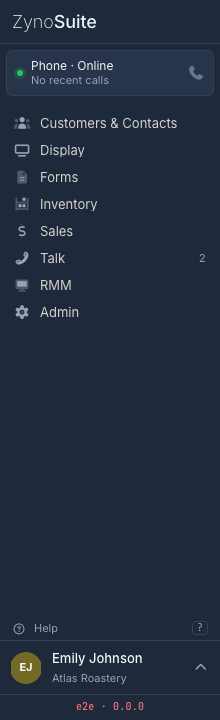
| Area | What it does |
|---|---|
| Brand header | Returns to the Home Launcher |
| Status dock | Phone status, incoming calls, waiting check-ins, and notification prompts when relevant |
| App navigation | Lists the apps and shortcuts your account can access |
| Update row | Shows Update available when the app needs a reload |
| Help | Opens support and help resources |
| User strip | Password, fingerprints (Workstation), organization switching, logout |
Not every row appears for every account. ZynoTalk phone status, check-ins, and Admin only show when they apply. Full detail is in Quick Action Bar.
User menu
Select your user strip at the bottom of the sidebar. Depending on platform and permissions, you may see:
- Change Password
- Manage Fingerprints (Workstation)
- Switch Tenant (when your account belongs to more than one organization; not shown on Workstation)
- Logout
If you are impersonating another user, the user strip shows that state so you can exit impersonation.
Switching between modules
You do not need to return to the launcher for every switch:
- Use sidebar app links (and ZynoSales subapps such as Salespoint or Bookings) to move between tools.
- Use the status dock for check-ins, softphone, and notification setup without leaving your current page.
- Use browser back/forward as usual on web.