Appearance
Getting Started with ZynoSuite (Web)
WebOpen zyno.app in a browser to use ZynoSuite with no install. Use Web for day-to-day work, admin, reporting, and softphone calling.
Supported browsers
ZynoSuite supports the latest versions of the following browsers:
- Google Chrome (recommended)
- Microsoft Edge
- Mozilla Firefox
- Apple Safari
For the best experience, keep your browser up to date. ZynoSuite requires JavaScript to be enabled.
Accessing ZynoSuite
Open zyno.app in your browser to reach the login page.
First login
- Navigate to zyno.app.
- Enter your email address and password, or select your SSO provider if configured.
- If multi-factor authentication is enabled, complete the MFA prompt.
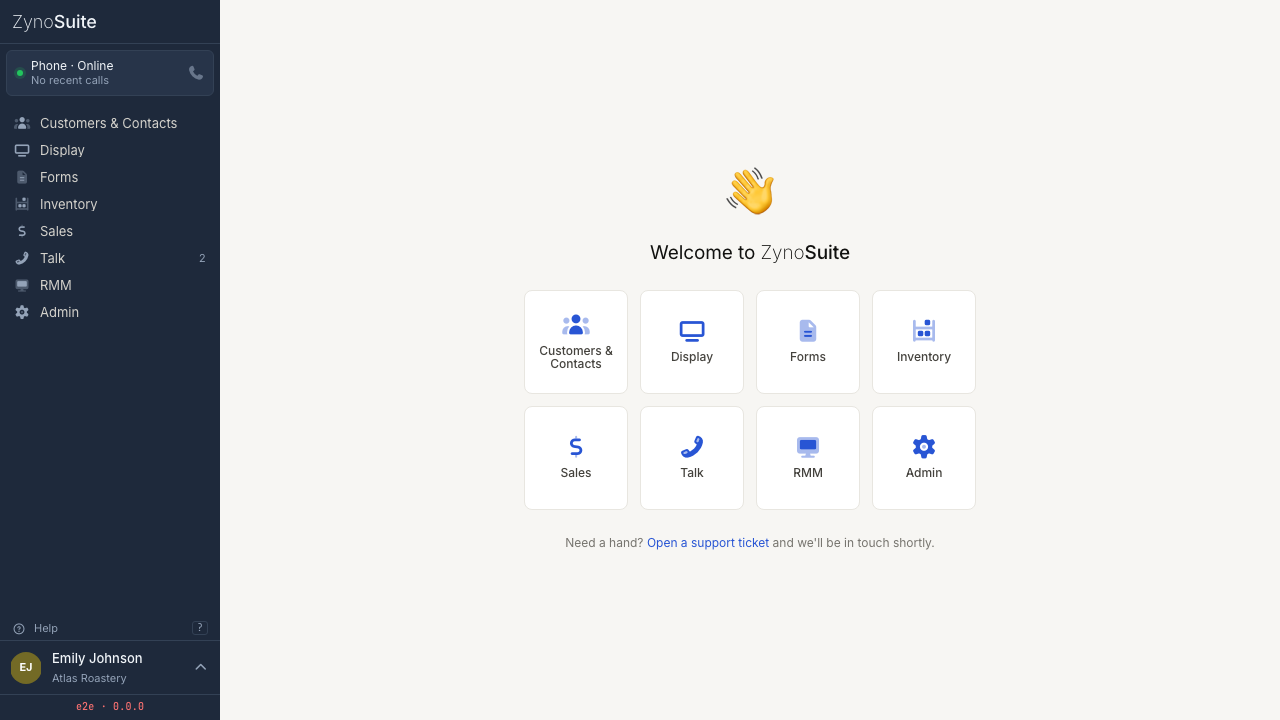
- You will land on the Home Launcher, showing the modules available to you.
On your first login, take a moment to explore the Home Launcher and the sidebar Quick Action Bar—app links, status, help, and your account controls live there while you work.
Enabling push notifications
ZynoSuite can send push notifications through your browser to alert you about events like incoming check-ins, new messages, and system updates.
To enable push notifications:
- When prompted by ZynoSuite (or from notification preferences), allow notifications in the browser permission dialog.
- If you previously denied the permission, you will need to update it in your browser's site settings. Look for the notification or permission settings for zyno.app.
TIP
Push notifications require a modern browser with notification support. They work even when ZynoSuite is open in a background tab, but your browser must be running.
For detailed configuration, see the Push Notifications platform guide.
Browser extension for click-to-call
If your organization uses ZynoTalk, an optional browser extension is available that enables click-to-call functionality. With the extension installed, phone numbers on any web page become clickable links that initiate a call through ZynoTalk.
For setup instructions, see the Browser Extension platform guide.