Appearance
The Booking Calendar
WebWorkstationMobileView the day's schedule, open slots, and blocked times for an activity and location. Create or change bookings from open times.
Open the calendar
Open ZynoSales > Bookings, then select Calendar. Choose an activity and, when your organization has more than one location, choose a location.
If no activity or location is selected, the calendar asks you to select them before it loads bookings.
Calendar views
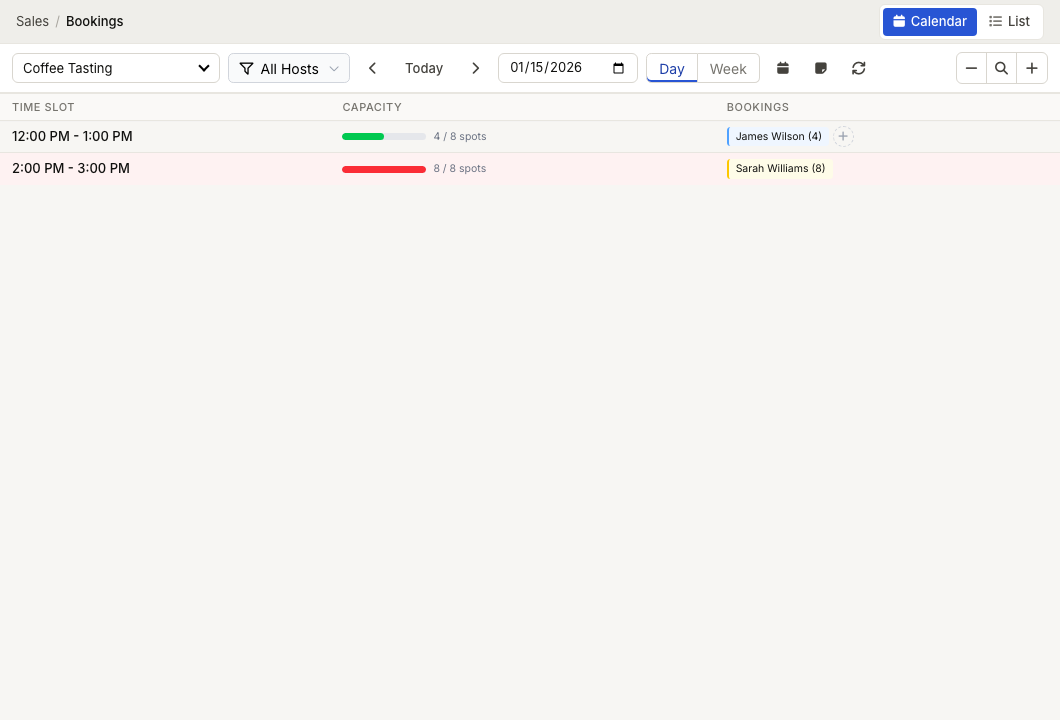
Each activity is configured with a calendar display mode during activity setup. Depending on the activity, the calendar renders as a time block view, resource columns view, or slot grid view.
On wider screens, use Day and Week to change the date range. On narrow mobile screens, the calendar stays in day view.
Time block view
Bookings appear as colored blocks on a vertical timeline. Each booking shows the customer name, service, and time. This is the simplest view and works well for activities with a straightforward schedule.
Best for: Activities with few resources, group classes, or any situation where you just need to see what is happening and when.
Resource columns view
Each resource gets its own column, with bookings displayed as blocks within each column. This view makes it easy to see which resources are occupied and which are free at any given time.
Best for: Hair salons (one column per stylist), bowling alleys (one column per lane), any business where you need to track multiple resources side by side.
In this view, you can quickly identify gaps in a specific resource's schedule and create bookings directly by selecting an open time in a resource's column.
Slot grid view
Time slots appear as a grid with capacity indicators. Each cell shows how many spots are filled versus available. As a slot fills up, the visual indicator changes to reflect remaining availability.
Best for: Fixed-slot activities like group classes, wind tunnel sessions, or any activity where you care more about how full each slot is than which specific resources are assigned.
What you see on the calendar
Each booking entry on the calendar typically shows:
- Customer name — Who the booking is for (from the linked sales transaction).
- Service name — The product that was booked (for example, "Haircut" or "4-Min Flight").
- Time — The start and end time of the booking.
- Status — A visual indicator of the booking's current state (pending, confirmed, checked in, in progress, completed, cancelled, or no-show).
- Resource — Which resource is assigned (in resource columns view, this is implied by the column).
Blocked times appear as shaded regions on the calendar and cannot be booked into.
Buffer times (setup and cleanup periods) appear as lighter shaded areas before and/or after bookings, so you can see why a gap exists even though it is not available.
Checking availability
The calendar shows available slots alongside existing bookings. Available times appear as open space (or empty grid cells in slot grid view). You can select an open slot to begin creating a new booking.
The availability shown on the calendar accounts for all factors — the activity schedule, resource schedules, blocked times, existing bookings, buffer times, and capacity limits. If a slot appears available on the calendar, it can be booked.
Creating staff Bookings from the calendar
To create a new booking directly from the calendar:
- Select or right-select an available time slot.
- Choose Create Booking, Create Booking — the selected time, or Book a product... when that option appears.
- ZynoSuite opens Salespoint with the selected booking time carried forward.
- Add the bookable product, attach or create the customer, and save or complete the sale.
The booking is created with a sales transaction containing the booked items. This is a staff workflow; ZynoSales does not currently expose a public browser flow that creates bookings. See Managing Bookings for the full workflow.
Calendar interval
The calendar grid is divided into time increments based on the activity's calendar interval setting. For example, if the interval is 15 minutes, the timeline shows divisions at 9:00, 9:15, 9:30, 9:45, and so on. This affects all three calendar views.
If no calendar interval is set on the activity, the grid uses the slot duration (for fixed and variable activities) or adapts to the booked service durations (for resource-driven activities). You can configure the calendar interval in activity setup.
Calendar navigation
- Date picker — Jump to a specific date.
- Today button — Return to the current date.
- Forward / back — Move one day or one week at a time depending on the selected Day or Week view.
- Refresh — Reload bookings, blocked times, and resource schedules.
- Show notes — Toggle booking notes on supported views.
- Compact / calendar view — Switch between denser and more calendar-like layouts on supported views.
- Zoom — Adjust the time scale on wider screens to see more or fewer hours.
Common issues
| Problem | What to check |
|---|---|
| Calendar asks for activity or location | Select both before the schedule can load |
| No open slots | Check activity schedules, resources, blocked times, and capacity—see Schedules & Availability |
| Cannot create a booking from a slot | Confirm bookable products and booking permissions—see Managing Bookings |
| Bookings missing on mobile | Mobile stays in day view; change date with the date picker |
| Public self-service booking unavailable | Customer self-booking is not currently exposed—use staff workflows and Appointment Links |