Appearance
Waitlist
WebWorkstationWhen a time slot is full, you can create a waitlist entry for an interested customer and follow up when a space becomes available. ZynoSales currently does not provide a public waitlist-join flow.
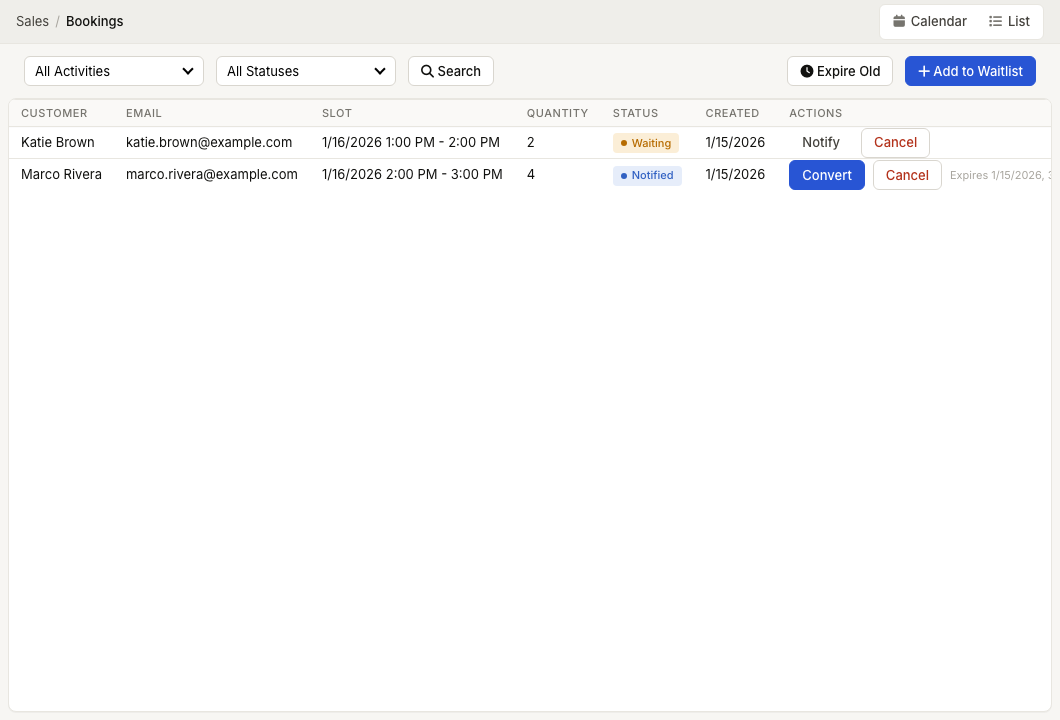
Current navigation
The Waitlist screen uses the direct ZynoSales route /sales/bookings/waitlist. It does not appear in the normal ZynoSales navigation or as a tab on ZynoSales > Bookings, which shows Calendar and List.
Add an entry
Select Add to Waitlist and record:
- The activity and requested time slot.
- The product or service.
- The customer's name and contact details, or their existing contact record.
- The requested quantity.
- The requested duration for a variable-duration activity.
- A preferred resource when relevant.
ZynoSales prevents duplicate entries for the same customer and slot when it can match the contact record or email address.
Work the waitlist
The Waitlist screen supports activity and status filters, search, and expiring stale entries. The table shows the customer, email, requested slot, quantity, status, creation time, and available actions.
When an opening is available, you can notify a waiting entry and set Offer Expires At. The entry then moves to Notified. ZynoSales can also attempt to notify the next waiting entry when a booked slot is released.
Statuses
- Waiting — Active and awaiting an opening.
- Notified — An opening is offered and the response window is active.
- Converted — The entry is connected to a booking.
- Expired — The offer or entry is no longer active.
- Cancelled — Someone cancels the entry.
Convert or close an entry
When the customer accepts an offer, you create or identify the related booking and converts the waitlist entry through the waitlist workflow. The conversion prompt requires the related tab item identifier, so this step needs access to the booking's Salespoint record.
Cancel an entry when the customer no longer wants the time, and use Expire Old to remove stale offers from the active queue.