Appearance
Managing Bookings
WebWorkstationMobileStaff create bookings from Salespoint or an available time on the booking calendar. ZynoSales currently does not offer a customer-facing browser flow that creates bookings.
Create a booking
From a sales tab
- Add a bookable product to a sales tab.
- Select an available date and time. Select an allowed duration when the activity uses variable durations.
- Associate or create the customer record as needed.
- Save or complete the sale.
ZynoSales validates availability and assigns resources according to the activity and product configuration.
From the calendar
Select an available time in the booking calendar and start the create-booking action. Salespoint opens with the selected booking time. Add the bookable product and customer, then save or complete the sale. See The Booking Calendar.
Booking statuses
| Status | Meaning |
|---|---|
| Pending | The booking awaits confirmation. |
| Confirmed | The booking is confirmed and reserves its assigned capacity or resources. |
| Checked In | Staff records the customer's arrival. |
| In Progress | The activity is underway. |
| Completed | The booking is complete. |
| Cancelled | The booking is cancelled. |
| No Show | The customer did not arrive. |
The available action depends on the booking status, the related sale, and the staff member's permissions.
Review and confirm
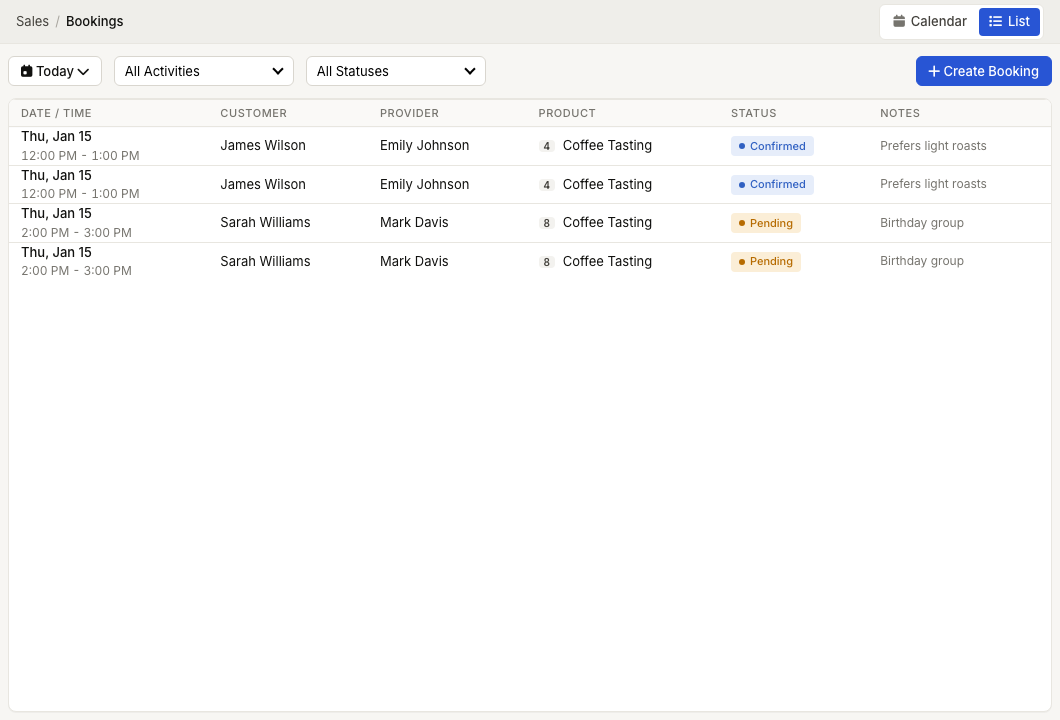
- Open ZynoSales > Bookings.
- Choose Calendar or List.
- Select the booking.
- Review the sale and scheduling details.
- Confirm the booking when the action is available.
Use Open in Salespoint when you need to change an editable sale's customer, items, discounts, payments, or notes. A non-editable sale opens read-only.
Cancel a booking
Select Cancel Booking from the booking preview when the action is available. ZynoSales asks for confirmation, releases the booking's availability, and applies the configured cancellation-policy calculation. Handle a completed sale through the appropriate transaction or refund workflow.
See Cancellation Policies for the refund rules.
Reschedule a booking
Move an editable booking to an available time from a supported calendar view, or adjust the scheduled item in Salespoint. ZynoSales checks the new slot before applying the change and keeps the booking connected to its sale; rescheduling does not create a customer self-service flow or replace the booking with a separate customer booking.
Only bookings in eligible, non-terminal statuses can be rescheduled. If the old time becomes available, the waitlist workflow can notify the next waiting entry.
Filter the list
The List view supports date, activity, location, status, and resource filters where applicable. Use it to review upcoming bookings and identify items that need confirmation, check-in, cancellation, or follow-up.